Part of the guide: Laravel on cPanel & Shared Hosting: The Complete Guide
Laravel schedule:run Not Working on cPanel? Fix It
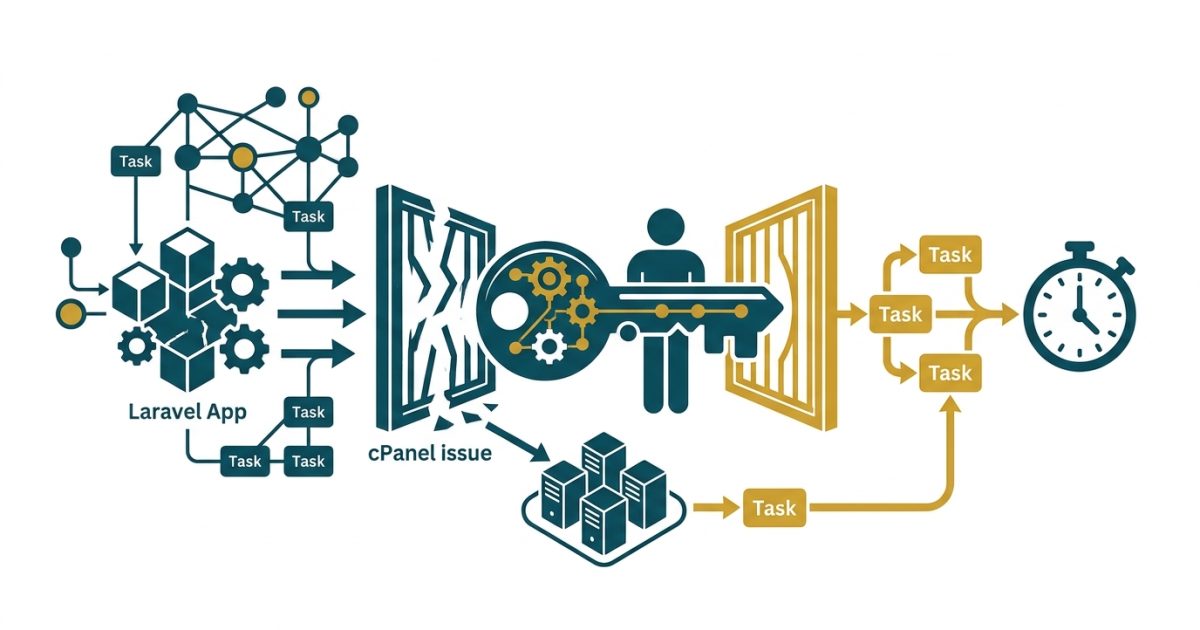
The most common mistake is adding php artisan schedule:run in cPanel without checking which PHP version cron actually runs. Your website might run PHP 8.2 or newer through PHP-FPM while the server's default command-line php points to an older version, or to a CGI build that handles arguments differently.
If you've got Laravel schedule:run not working on cPanel, check the PHP binary, the project path, how PHP receives CLI arguments and when your tasks are actually due, before you touch your application code.
Quick fix: In cPanel Cron Jobs, run Laravel's schedule:run once per minute using your project's absolute path and a CLI PHP binary that matches your Laravel version. Check schedule:list to see what's due, and log cron output while testing. If cron runs but nothing happens, look at the timezone, stale overlap locks, cached config and register_argc_argv.
Why Laravel schedule:run is not working on cPanel
Before changing anything, have these ready:
- Laravel 11 or 12. New projects register schedules in
routes/console.php(orbootstrap/app.php); projects upgraded from Laravel 10 may still useapp/Console/Kernel.php. - cPanel access with Cron Jobs enabled.
- SSH or cPanel Terminal, if your plan has it. Testing is much faster with it.
- The absolute path to your Laravel project and its
artisanfile. - A command-line PHP version your Laravel version supports.
In this guide, the example application lives at /home/myaccount/myapp, so Artisan is /home/myaccount/myapp/artisan and logs go to /home/myaccount/myapp/storage/logs. Replace myaccount and myapp with your own.
Don't assume the project is inside public_html. On a sensible deployment the Laravel app sits outside the web root, and only public is exposed.
Check which PHP binary cron will use
In Terminal, run:
which php
php -v
/usr/local/bin/php -v
which php shows the binary your shell finds. The -v commands print the version, and the first line also tells you the build: (cli) is what you want. If you see (cgi-fcgi), that binary is the CGI build, and it's a classic cause of cron weirdness (more on that in the errors section).
On cPanel servers with EasyApache 4, version-specific PHP is usually available at one of these:
/usr/local/bin/ea-php82 -v
/opt/cpanel/ea-php82/root/usr/bin/php -v
On CloudLinux hosts that use the PHP Selector, the CLI binaries usually live under /opt/alt:
/opt/alt/php82/usr/bin/php -vThese are common paths, not guaranteed ones. Use the one that exists on your server, reports (cli) and meets your Laravel version's PHP requirement. A website working fine through PHP-FPM proves nothing about the PHP that cron uses.
Set up the cPanel cron job for the Laravel scheduler
Laravel's scheduler is meant to be triggered once a minute by the operating system. Laravel then checks every registered task and runs the ones that are due. You need one cron entry per application, not one per task.
Step 1: Open Cron Jobs in cPanel
In cPanel, go to Advanced > Cron Jobs (the location varies a little by theme). At the top there's a Cron Email field: any output your cron command prints gets mailed there, which is handy while testing and annoying afterwards.
Under Add New Cron Job > Common Settings, choose Once Per Minute (* * * * *), or fill the five fields manually:
| Field | Value |
|---|---|
| Minute | * |
| Hour | * |
| Day | * |
| Month | * |
| Weekday | * |
Step 2: Use the right command
Laravel's documented crontab entry is:
* * * * * cd /path-to-your-project && php artisan schedule:run >> /dev/null 2>&1cPanel takes the timing in separate fields, so paste only the command part into Command. For the example project:
cd /home/myaccount/myapp && /usr/local/bin/ea-php82 artisan schedule:run >> /dev/null 2>&1If your host confirms /usr/local/bin/php is a compatible CLI build, this works too:
cd /home/myaccount/myapp && /usr/local/bin/php artisan schedule:run >> /dev/null 2>&1What each part does:
cd /home/myaccount/myappmoves into the project directory.&&runs the next command only if thecdsucceeded./usr/local/bin/ea-php82picks a specific PHP binary instead of whateverphpmeans in cron's minimal environment.artisan schedule:runstarts Laravel's scheduler.>> /dev/null 2>&1throws away output and errors.
That last part is fine once everything works. While troubleshooting, it hides exactly what you need to see.
Step 3: Log cron output while testing
Temporarily use this instead:
cd /home/myaccount/myapp && { date; /usr/local/bin/ea-php82 artisan schedule:run; } >> /home/myaccount/myapp/storage/logs/cron-debug.log 2>&1The { ...; } group sends both commands' output to the log, and date stamps each run. That matters: when no task is due, schedule:run only prints No scheduled commands are ready to run., and without the timestamp you can't tell whether cron fired at all.
One cron gotcha: % is a special character in crontab commands. If you ever write something like date +%F in a cron command, escape it as \%, or the command gets cut off at that point.
After a minute or two, check the log:
tail -n 50 /home/myaccount/myapp/storage/logs/cron-debug.logOr open it in File Manager. If the file never appears, cron isn't running the command, the path is wrong, or the directory isn't writable. Then check Laravel's own log:
tail -n 50 /home/myaccount/myapp/storage/logs/laravel.logIf you use the daily log channel, the file is named by date (for example laravel-2026-10-21.log), so list the directory if laravel.log doesn't exist.
Step 4: Keep exactly one scheduler entry
On a single server, create one scheduler cron entry per application. Don't add a second copy because the first one "seems to do nothing". Two identical entries start two scheduler processes every minute, and every due task runs twice.
If your app runs on several servers, Laravel's onOneServer() stops a task running on each of them, but it needs a shared cache store (database, Redis, Memcached and similar). See the Laravel task scheduling docs. On a single shared-hosting account you don't need it.
Test the scheduler and find where your schedules live
Before debugging emails, database updates or jobs, prove the scheduler works with a task that only writes a log line. That separates scheduler problems from bugs inside your real commands.
List your scheduled tasks
cd /home/myaccount/myapp
/usr/local/bin/ea-php82 artisan schedule:list
Laravel shows each registered task and its next run time. If your task isn't listed, the problem is registration, not cron. If it's listed with an unexpected next run, check the expression and timezone.
Add a one-minute test task
In routes/console.php, add this without removing your existing schedules:
use Illuminate\Support\Facades\Log;
use Illuminate\Support\Facades\Schedule;

Schedule::call(function () {
    Log::info('Scheduler test executed', [
        'time' => now()->toDateTimeString(),
    ]);
})->everyMinute();
If Schedule or Log is already imported at the top of the file, don't import it twice. This only writes a log entry: no email, no API call, no data changes.
Run it manually, then let cron run it
/usr/local/bin/ea-php82 artisan schedule:run
tail -n 30 storage/logs/laravel.log
Look for a line containing Scheduler test executed (with a timestamp and local.INFO in front of it). If it appears after a manual run, the scheduler itself works. Now wait for cron to trigger it.
If the entry appears after manual runs but never from cron, the problem is the cron command: PHP binary, working directory, or a server restriction.
schedule:work is for your laptop
Locally, you can run:
php artisan schedule:workIt stays in the foreground and invokes the scheduler every minute, which is handy while writing scheduled commands. Stop it with Ctrl+C. I wouldn't use it instead of cron on shared hosting: it's a long-running process, and shared hosts often kill those.
Which file holds your schedule in Laravel 11 and 12
Older tutorials tell you to edit app/Console/Kernel.php. New Laravel 11 and 12 projects don't have that file; schedules go in routes/console.php:
use Illuminate\Support\Facades\Schedule;

Schedule::command('invoices:send')->dailyAt('09:00');
This assumes an Artisan command with the signature invoices:send exists. Check with:
php artisan listProjects upgraded from Laravel 10 can keep their old structure, and in that case the schedule() method in app/Console/Kernel.php is still the one that counts. If you add tasks to routes/console.php in an upgraded app and they never show in schedule:list, check whether Kernel.php is still there.
You can also define schedules inside the existing Application::configure(...) chain in bootstrap/app.php:
->withSchedule(function (\Illuminate\Console\Scheduling\Schedule $schedule) {
    $schedule->command('invoices:send')->dailyAt('09:00');
})
That's a fragment for the existing chain, not a standalone file. Both approaches work; for a normal app I'd keep schedules in routes/console.php.
Also confirm you're editing the copy of the app that cron actually runs. Accounts with staging and production copies of the same project catch people out all the time.
Verification checklist
Once it's set up, run through this:
/usr/local/bin/ea-php82 -vshows a supported version and(cli).ls -l /home/myaccount/myapp/artisanfinds the file.schedule:listshows your task with the expected next run time.- A manual
schedule:runexecutes the test task. (A daily task won't run manually unless it's due right now, which is why theeveryMinute()test task exists.) cron-debug.logshows timestamps every minute and the test task's log line appears without you touching anything.- Remove the test task, then restore the quiet production command:
cd /home/myaccount/myapp && /usr/local/bin/ea-php82 artisan schedule:run >> /dev/null 2>&1In a raw crontab, the full line would be:
* * * * * cd /home/myaccount/myapp && /usr/local/bin/ea-php82 artisan schedule:run >> /dev/null 2>&1If you'd rather not work out cron timing fields by hand for other jobs, the HeadsNTail cron job generator builds the expression for you.
Timezone, overlapping tasks and background execution
A correct cron command doesn't guarantee a task runs when you expect it to.
My first mistake was with timezone settings and schedule adjustment. The cron job was only one part of the configuration. I also needed to check how Laravel interpreted the scheduled execution time.
Check the scheduling timezone
New Laravel apps use UTC in config/app.php, and many cPanel servers run on UTC too, even if your business is in Saudi Arabia. So dailyAt('09:00') means 9 AM UTC unless you say otherwise. For 9 AM Riyadh time:
use Illuminate\Support\Facades\Schedule;

Schedule::command('invoices:send')
    ->dailyAt('09:00')
    ->timezone('Asia/Riyadh');
Or set it once for all schedules by adding this to config/app.php:
'schedule_timezone' => 'Asia/Riyadh',That's separate from the app's general timezone setting, and it doesn't change the server's cron timezone. Cron still fires every minute; Laravel decides what's due.
The gotcha: if the server has a cached config, your edit is ignored until you rebuild it:
php artisan config:cache
php artisan schedule:list
Check the next-run time after re-caching. Saudi Arabia doesn't observe daylight saving time, but if you schedule for regions that do, tasks can be skipped or run twice around the clock change.
Prevent tasks from overlapping
If a command runs every minute but sometimes takes longer than a minute, a second copy can start while the first is still going. Laravel's fix:
Schedule::command('invoices:send')
    ->everyMinute()
    ->withoutOverlapping();
By default the lock expires after 24 hours (1,440 minutes). You can pass a different expiry in minutes:
Schedule::command('invoices:send')
    ->everyMinute()
    ->withoutOverlapping(10);
Set it longer than the task's realistic run time. If the lock expires while the first run is still working, overlap is possible again. Don't shorten it just because a task occasionally looks skipped.
Clear a stuck lock
If a command crashed while holding its lock, later runs are skipped until the lock expires. To clear scheduler locks:
php artisan schedule:clear-cacheOnly do this after checking the task isn't actually still running (look at running processes and the logs), or you'll start a second copy. Locks live in your cache store, so a cache driver that's broken or shared with another app causes strange lock behaviour too.
runInBackground for commands
Tasks due at the same minute run one after another by default, so a slow command delays the next. For command() and exec() tasks you can run them in the background:
Schedule::command('reports:generate')
    ->dailyAt('02:00')
    ->runInBackground();
It doesn't apply to Schedule::call() closures. It also depends on the host letting PHP spawn background processes, which some shared hosts restrict.
Avoid sub-minute schedules on shared hosting
Laravel can schedule more often than once a minute:
Schedule::job(new \App\Jobs\ProcessUpdates)->everyTenSeconds();This assumes the ProcessUpdates job exists and your queue works. With sub-minute tasks registered, schedule:run stays alive for the rest of the minute instead of exiting quickly. On shared hosting with execution and process limits, that's often impractical. Laravel's advice is to have sub-minute tasks dispatch queued jobs or background commands rather than do heavy work inline.
After deploying changes to sub-minute schedules, tell the running scheduler to stop using the old code:
php artisan schedule:interruptOn a typical cPanel app, I'd stick to minute-level schedules unless the host explicitly supports long-running processes.
Run Laravel queue workers on cPanel without Supervisor
The scheduler decides when work starts. A queue worker processes jobs that are already waiting. If your scheduled command queues emails, the scheduler can be working perfectly while the emails sit unprocessed.
Configure the queue connection
For a database queue:
QUEUE_CONNECTION=databaseNew Laravel 11 and 12 projects ship with the jobs table migration, but check your project instead of assuming. If it's missing:
php artisan make:queue-table
php artisan migrate --force
--force is needed to migrate in production. Run it through your normal deployment process, and never re-run old migrations blindly on a live database.
Add a separate queue worker cron entry
Without Supervisor, one option is to start a worker every minute and let it exit when the queue is empty. Add a second cron entry with the same every-minute timing:
cd /home/myaccount/myapp && /usr/local/bin/ea-php82 artisan queue:work --stop-when-empty --max-time=50 >> /dev/null 2>&1--stop-when-empty makes the worker exit once there are no jobs left. --max-time=50 asks it to stop after about 50 seconds, but only after the current job finishes. It's not a hard timeout, so a slow job can push the worker past the minute and cron will start a second one alongside it.
If parallel workers are a problem for your jobs, and flock exists on your server (which flock), wrap the command so a new worker only starts when the previous one has exited:
cd /home/myaccount/myapp && /usr/bin/flock -n storage/queue-worker.lock /usr/local/bin/ea-php82 artisan queue:work --stop-when-empty --max-time=50 >> /dev/null 2>&1-n makes flock give up immediately if the lock is held, instead of queuing up behind it. Otherwise, set sensible job timeouts and retries, or move to a host with a proper process manager.
While testing, log the worker separately so you can tell a queue failure from a scheduler failure:
cd /home/myaccount/myapp && /usr/local/bin/ea-php82 artisan queue:work --stop-when-empty --max-time=50 >> /home/myaccount/myapp/storage/logs/queue-cron.log 2>&1A processed email job isn't a delivered email. If mail sends fine but lands in junk, see how to fix cPanel email authentication with SPF, DKIM and DMARC. If your scheduled work kicks off related jobs in stages, chaining Laravel queue batches explains how batch completion and follow-up work fit together.
Don't use queue:listen in cron
queue:listen is meant to keep running. Starting a new listener from cron every minute stacks up parallel processes. For this periodic shared-hosting pattern, queue:work --stop-when-empty is the better fit, and a supervised, always-on worker is better still when your server allows one.
Cron errors you'll see on cPanel and how to fix them
"Could not open input file: artisan"
PHP can't find Artisan at the path it's looking in. Usually cron runs from the wrong directory, the project moved after the cron entry was created, the command points at public_html instead of the project root, or there's a typo. Check:
ls -l /home/myaccount/myapp/artisanYou can also call Artisan by absolute path:
/usr/local/bin/ea-php82 /home/myaccount/myapp/artisan schedule:runI'd still keep the cd in front, because some commands and scripts assume the project is the working directory.
Cron emails you the Artisan command list
Instead of running schedule:run, cron mails you the output of bare php artisan: the list of available commands. Sometimes there's a Content-type: text/html line at the top too.
That almost always means cron is calling a CGI PHP binary, not the CLI one. The CLI build always passes arguments through, but a CGI build depends on register_argc_argv, and when that's off, Artisan never receives schedule:run. Check the binary cron uses:
/usr/local/bin/php -v
/usr/local/bin/php -i | grep register_argc_argv
If -v shows (cgi-fcgi), switch the cron command to a CLI binary from the list earlier. If you can't, force the setting on for that one command:
cd /home/myaccount/myapp && /usr/local/bin/php -d register_argc_argv=On artisan schedule:runChanging PHP settings in cPanel's website PHP selector doesn't necessarily change command-line PHP, so ask your host if neither fix works. This symptom and several path fixes are discussed in a Laracasts thread about schedule:run returning the Artisan command list.
Errors mentioning a C:\xampp path, or config changes that never apply
If you ran php artisan config:cache on your Windows/XAMPP machine and uploaded bootstrap/cache/config.php, the server is using your local paths and settings. Cron then fails on log paths, or ignores your server .env. Delete the cached files on the server and rebuild them there:
cd /home/myaccount/myapp
/usr/local/bin/ea-php82 artisan config:clear
/usr/local/bin/ea-php82 artisan config:cache
Keep bootstrap/cache/*.php out of your uploads and out of Git.
Cron emails are flooding your inbox
cPanel mails anything a cron command prints to the Cron Email address. Once the job works, append >> /dev/null 2>&1 to discard both output and errors, or clear the Cron Email field. Don't silence it until you've confirmed the job works, or you'll hide PHP startup errors, permission failures and missing-file messages.
schedule:run works but no tasks execute
Run php artisan schedule:list and check the task is registered and due. Then look at:
- The scheduling timezone (and whether the config is cached).
environments()limiting the task to another environment, likeproductionwhenAPP_ENV=local.- A
when()orskip()condition returning the wrong value. - A
withoutOverlapping()lock left by a crashed run. - Maintenance mode. Scheduled tasks don't run while the app is down unless you add
evenInMaintenanceMode(). - A task that only dispatches a job to a queue nobody is working.
- Exceptions in
laravel.log.
Running schedule:run repeatedly won't make an hourly or daily task fire early. Laravel compares the schedule against the current time.
A task runs, but its email never arrives
Check whether the task sends mail directly or queues it. If it queues, check the queue connection, the worker cron and failed jobs:
php artisan queue:failedRead the exception on any failed job before retrying it with php artisan queue:retry all. If the job succeeded, check the mail transport settings and the recipient's spam folder. A scheduled task running, a queue job completing and an email being delivered are three separate results.
Tasks run twice
Look for duplicate scheduler entries in cPanel Cron Jobs. Also check whether the same app has a scheduler running somewhere else: another server, a system crontab or a process manager. If you host two Laravel apps on one account, give each its own cron entry and make sure neither points at the other's artisan file. Removing a duplicate cron entry is better than adding locks to hide it, though tasks that must never overlap should use withoutOverlapping() anyway.
The cron job hits memory or hosting limits
The scheduler can be fine while the task itself is too heavy. Shared hosts limit CPU, memory, processes and execution time. Move heavy work into queued jobs, and process large tables in chunks instead of loading everything at once. The same idea is behind exporting large data with chunks in Laravel-Excel. If the host keeps killing legitimate work, you've outgrown shared hosting for this job.
Rolling back the cron setup
If the scheduler causes unexpected activity, disable or delete its cron entry first. That stops new runs, though anything already running will finish. Then:
- Remove the temporary test task from
routes/console.php. - Restore any schedule or timezone settings you changed.
- Remove the queue-worker cron entry if you added it only for testing.
- Keep the diagnostic logs until you know what went wrong.
- Clear scheduler locks only after confirming the related task has stopped.
Rebuild the config cache through your normal deployment, and run schedule:interrupt if you use sub-minute schedules. Don't delete queue tables or pending jobs to roll back a cron change. They may hold invoices and notifications the app still needs to send.
FAQ
Does shared hosting allow a Laravel cron job every minute?
It depends on the host and plan. Laravel expects schedule:run every minute, but some shared hosts enforce a longer minimum interval or limit resources. Check your host's cron policy before relying on minute-level tasks.
Why does Laravel cron run but my scheduled task never fires?
Usually the task isn't due in Laravel's scheduling timezone, or it's being skipped by a condition, maintenance mode or a stale overlap lock. Check php artisan schedule:list, read the logs, and test with a temporary everyMinute() task. Also confirm the cron entry points at the right copy of the app.
Can I use schedule:work instead of cron on cPanel?
schedule:work is meant for local development and has to stay running in the foreground. Shared hosts typically kill long-running processes, so use a cPanel cron job with schedule:run unless your host provides a supported process manager.
Do I need Supervisor for Laravel scheduled tasks?
No. The scheduler runs from cron without Supervisor. Supervisor matters for keeping queue workers alive; on restricted hosting, a cron-started queue:work --stop-when-empty is a workable substitute if the host allows it.
If you've checked the PHP binary, project path, timezone, registered schedules and cron logs and still have Laravel schedule:run not working on cPanel, send the exact cron command and error output to your host, or contact HeadsNTail for a configuration review.